Locked out of your Xiaomi, Redmi or POCO phone? The fix depends on which lock you are facing. A forgotten Xiaomi Account (Mi Account) password, the “This device is locked” screen after a reset, and a forgotten screen PIN are three different problems, and each one has a different solution.
This guide explains each lock in plain words, starts with Xiaomi’s own free methods, and then covers when a desktop tool like Wondershare Dr.Fone can help.
Which Lock Do You Have?
Find your situation below, then jump to the matching section:
You can still use the phone but can’t sign in to your Xiaomi Account or Xiaomi Cloud.
Free Data keptFind Device was on when the phone was reset, so it now asks for the old Xiaomi Account.
Free Needs account or invoiceThe phone is on, but you can’t get past the lock screen.
Erases data Free or paidThe phone still asks for the previous owner’s Xiaomi Account.
Free Seller must helpMethod 1: Reset Your Xiaomi Account Password
If you still have access to the phone number or email linked to your Xiaomi Account (earlier called Mi Account), this is the quickest fix and it keeps all your data.
On a computer or mobile browser
- Go to account.xiaomi.com (or id.mi.com).
- Click Forgot password? on the sign-in page.
- Enter your Xiaomi Account ID, linked phone number or email.
- Enter the verification code sent to that phone number or email.
- Set a new, strong password.
On your Xiaomi phone
- Go to Settings > Xiaomi Account and choose to sign in.
- Tap Forgot password and reset it using your recovery phone or email.
Once the password is reset, sign in on the phone with the new password and the lock is removed.
Method 2: No Access to Your Recovery Phone or Email
If the linked number or email no longer works, you can still try to recover the account:
- Old phone number: ask your mobile operator to reissue the same number on a new SIM, then use the SMS reset in Method 1.
- Account appeal: on the Xiaomi Account recovery page, choose the option to reset your recovery phone and fill in the details Xiaomi asks for. Xiaomi reviews the request before letting you reset the password.
- Forgot your account ID: use the “Forgot ID” option and verify with your email or phone to find it.
Method 3: Fix the Device Locked Screen After a Reset
This screen appears when a phone is reset while Find Device was turned on. The reset clears your data, but the phone stays linked to the old Xiaomi Account until someone signs in with it.
STEP 1Connect to Wi-Fi on the lock screen and sign in with the Xiaomi Account and password that were on the phone. If you’ve forgotten the password, reset it first using Method 1.
STEP 2If you can’t recover the account, contact Xiaomi Support or visit an authorised Xiaomi service centre.
STEP 3Keep these ready: the unlock code shown on the lock screen or the phone’s IMEI, your proof of purchase (invoice or order number), and the phone number linked to the Xiaomi Account.
Xiaomi checks these details before unlocking, and it rejects requests with incomplete or invalid proof of purchase. Keep your invoice safe for as long as you own the phone.
Method 4: Bought a Second-Hand Phone?
If the phone is still linked to the seller’s Xiaomi Account, the seller has to release it. Ask them to:
- Sign in at i.mi.com (Xiaomi Cloud) with their Xiaomi Account.
- Open their device list and select the phone.
- Remove (delete) the device from the account. They may need to enter their password to confirm.
- Restart the phone, connect to Wi-Fi and set it up with your own account.
If you can’t reach the seller, Xiaomi Support is your only legitimate option, and it will ask for proof of purchase. When buying a used Xiaomi phone, always check that it has been signed out of the seller’s account before paying.
Method 5: Forgot Your Screen PIN, Pattern or Password
A forgotten screen lock is different from a Xiaomi Account lock. In almost every case, removing it means resetting the phone, and all data that isn’t backed up will be lost. (Using an iPhone instead? See our guide on what to do if you forgot your iPhone passcode.)
Option A: Reset with Recovery Mode (free)
- Turn off the phone.
- Press and hold Power + Volume Up until the recovery menu appears.
- Choose Wipe Data, then Wipe All Data, and confirm.
- Restart the phone. If Find Device was on, sign in with your Xiaomi Account when asked (see Method 3).
Menu names can differ slightly between MIUI and HyperOS versions, but the steps are similar.
Option B: Use Wondershare Dr.Fone (paid)
If you prefer a guided desktop tool, Dr.Fone – Screen Unlock (Android) walks you through removing a forgotten PIN, pattern, password or fingerprint lock on many Xiaomi, Redmi and POCO models. On Xiaomi phones this process erases your data, and the full version is paid.
STEP 1Install Dr.Fone on your Windows PC or Mac, open Toolbox > Screen Unlock and choose Android.
STEP 2Select Unlock Android Screen, then choose Xiaomi from the brand list.
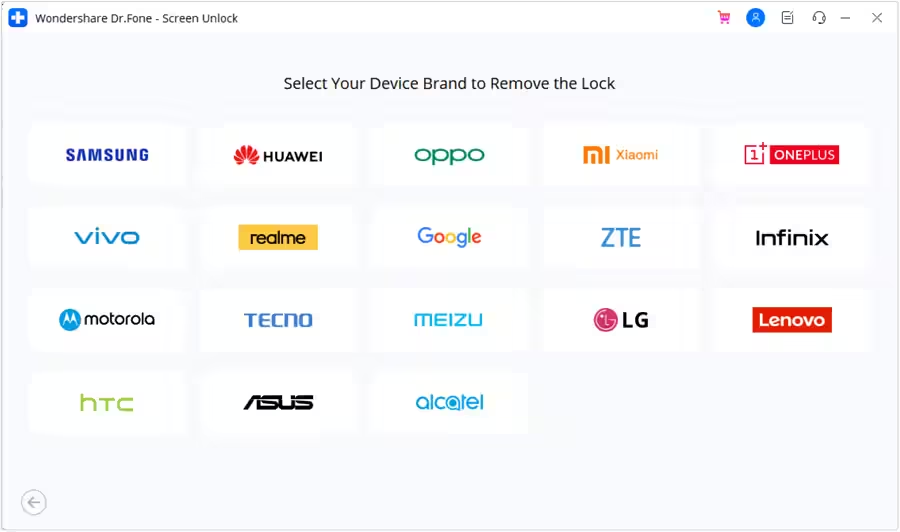
STEP 3Pick your phone model and follow the on-screen steps to put the phone into Recovery Mode.
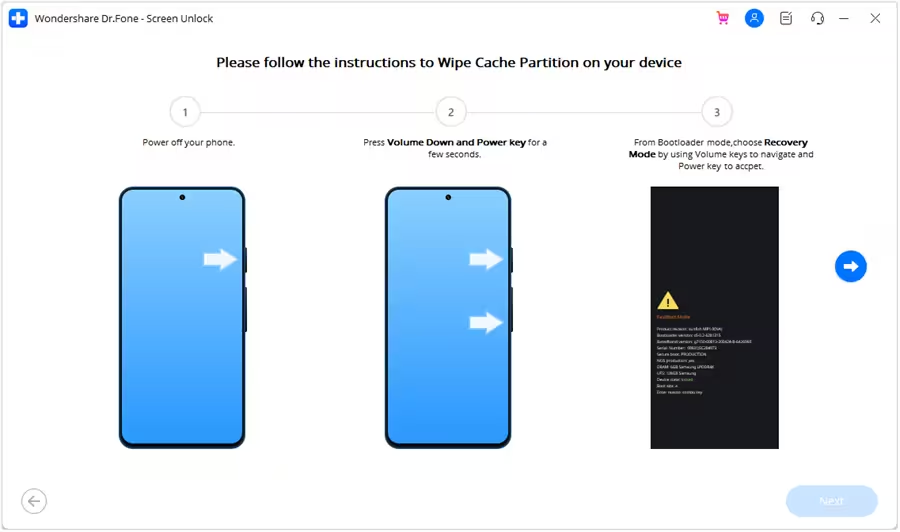
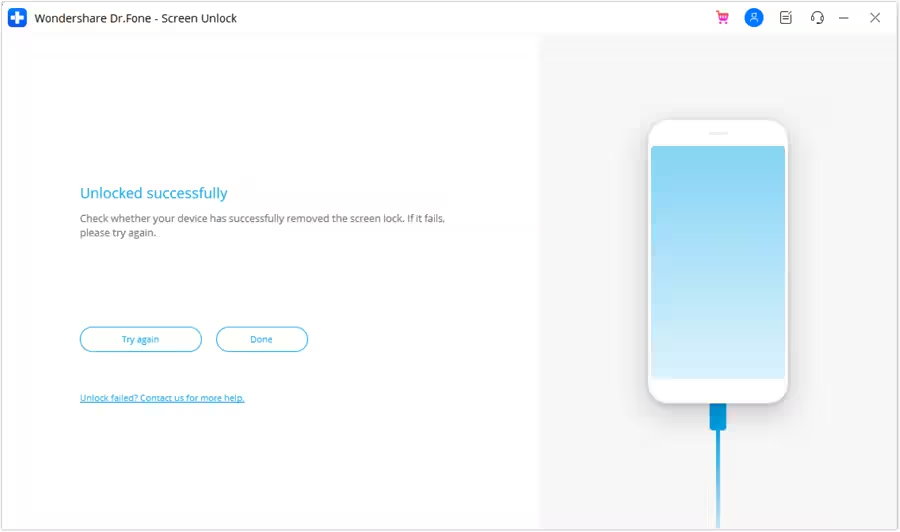
STEP 4Let Dr.Fone finish removing the screen lock, then set up the phone. If Find Device was on, you’ll still need your Xiaomi Account password.
Wondershare also publishes a guide on Mi Account lock options if you want to compare approaches.
Mi Unlock Tool: What It Really Does
Many guides describe Xiaomi’s Mi Unlock tool as a way to remove a Mi Account lock. It isn’t. Mi Unlock is Xiaomi’s official tool for unlocking the phone’s bootloader, which is needed for installing custom software.
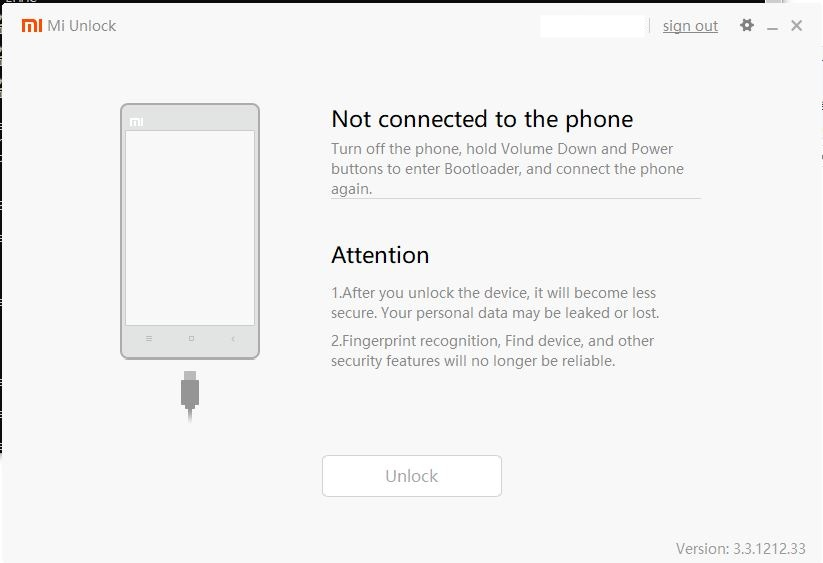
- You must sign in to Mi Unlock with the same Xiaomi Account that’s on the phone, so it can’t help if you’ve lost that account.
- Xiaomi makes you link the account to the phone and wait before unlocking. The wait is often 7 days or more, and newer HyperOS phones may need an approved application first.
- Unlocking the bootloader erases all data on the phone.
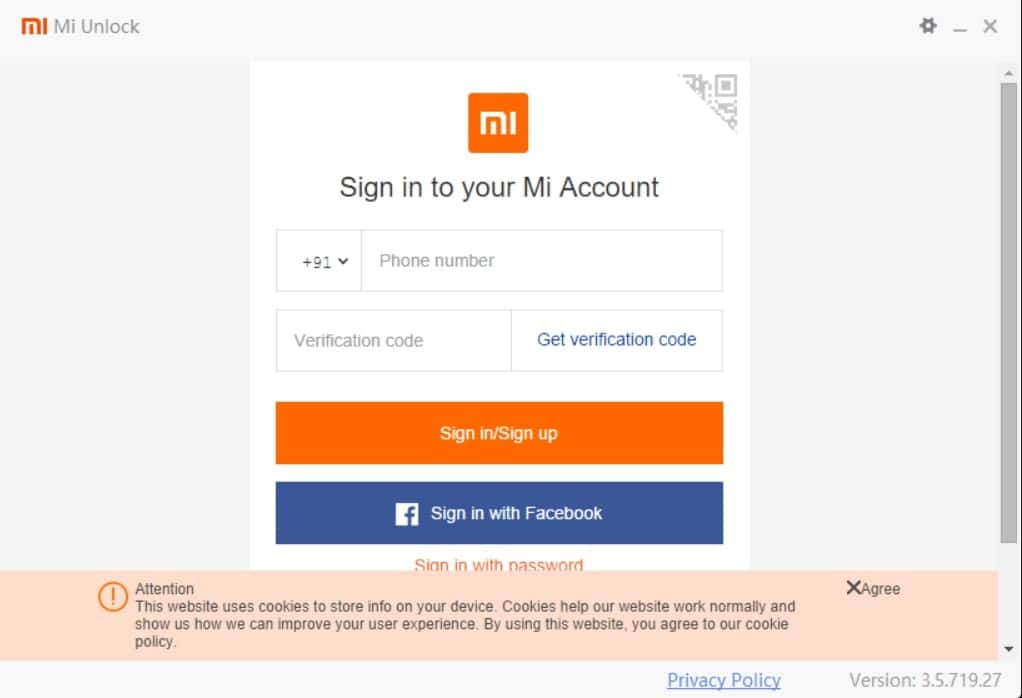
If you do need to unlock the bootloader, get Mi Unlock only from Xiaomi’s official pages: the Mi device unlock page and the Mi Unlock download page.
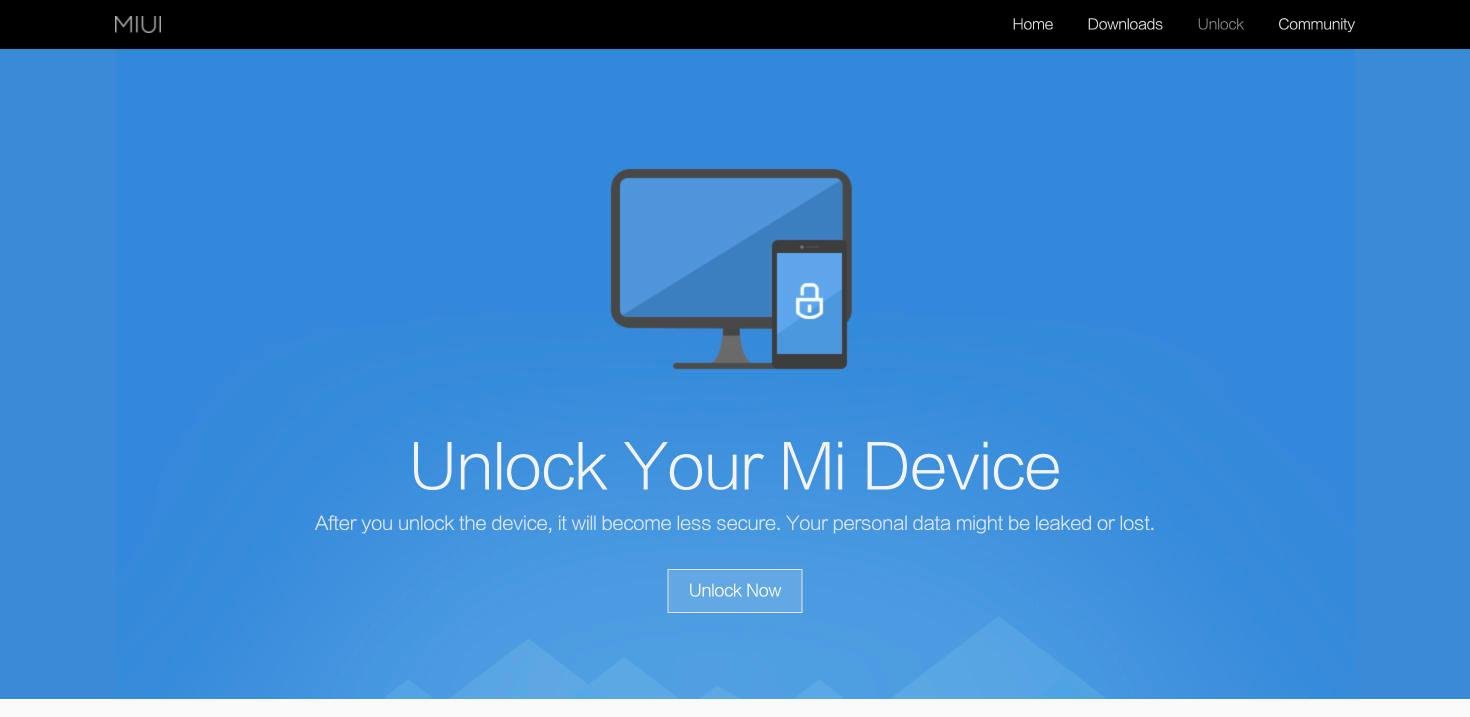
The download page lists the basic steps: sign in to Mi Unlock on your PC with your Mi Account, turn the phone off and hold Volume Down + Power to enter Fastboot mode, then connect it by USB and click Unlock. Xiaomi also warns that an unlocked phone is less secure and loses features such as Find Device.
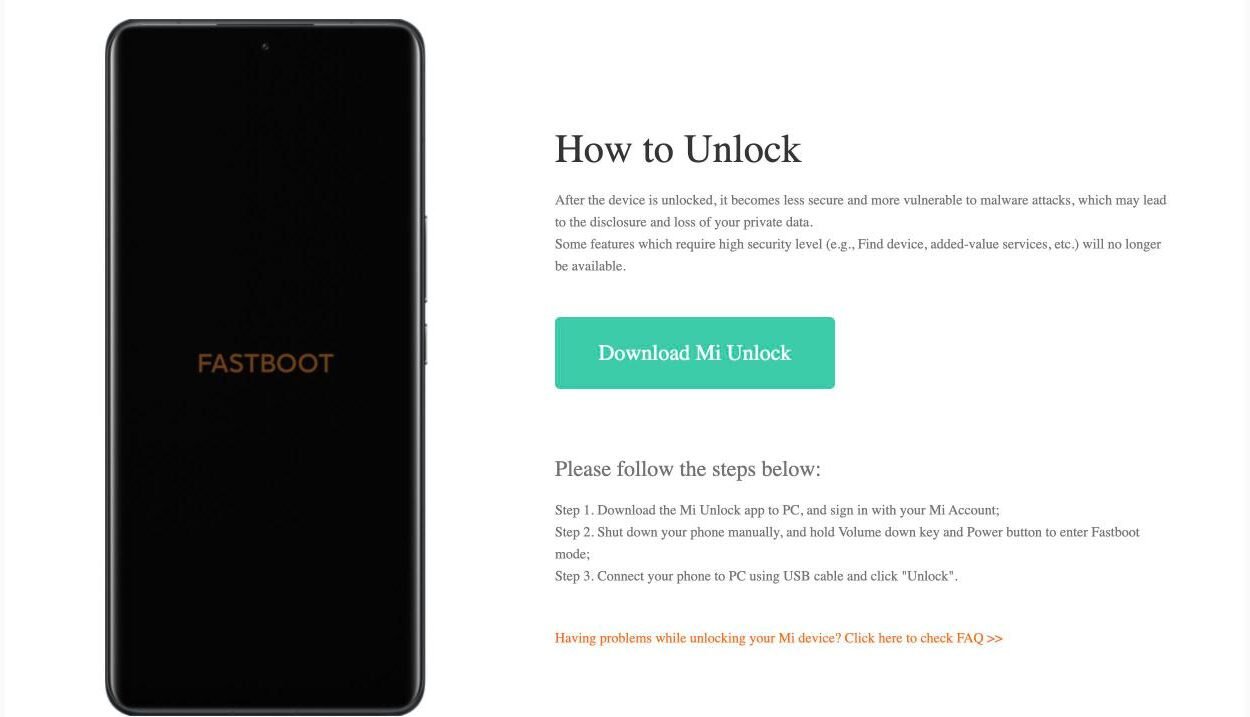
Note: these MIUI pages are older. On newer phones running HyperOS, Xiaomi may first require you to apply for unlock permission and wait for approval, so check the current requirements for your model before you start.
Sites and Tools to Avoid
Searching for “Mi Account unlock” brings up many websites and downloads that promise instant removal. Be careful:
- Don’t enter your Xiaomi Account password, IMEI or payment details on unofficial “unlock” websites.
- Avoid “modified” or “cracked” Mi Unlock tools and random APK files. They are a common way to spread Android malware.
- Be wary of any service that promises to remove a Find Device lock without the account or proof of purchase. If the phone isn’t yours, it may be stolen.
How to Avoid Getting Locked Out
- Keep your Xiaomi Account linked to a phone number and email you actually use.
- Save your Xiaomi Account password in a password manager.
- Sign out of your Xiaomi Account and turn off Find Device before selling or giving away a phone.
- Keep the purchase invoice and box for as long as you own the phone.
- Back up regularly to Xiaomi Cloud or Google so a reset doesn’t cost you your photos and contacts. Switching phones? Follow our guide to transferring data to a new Android or iPhone.
FAQs
Is Mi Account the same as Xiaomi Account?
Yes. Xiaomi now calls it the Xiaomi Account, but many people still call it Mi Account. The same login works for Xiaomi Cloud and Find Device.
Can I remove a Mi Account without the password?
Only through Xiaomi: by resetting the password with your recovery phone or email, through an account appeal, or by contacting Xiaomi Support with proof of purchase. For a second-hand phone, the previous owner can remove it from Xiaomi Cloud.
Does the Mi Unlock tool remove the Mi Account?
No. Mi Unlock unlocks the bootloader and requires you to sign in with the Xiaomi Account already on the phone.
Will unlocking erase my data?
Resetting your Xiaomi Account password does not erase data. Removing a forgotten screen lock or unlocking the bootloader usually does.
What does Xiaomi Support need to unlock my phone?
Typically the unlock code from the lock screen or the IMEI, proof of purchase such as an invoice or order number, and the phone number linked to the Xiaomi Account.
Final Words
Most Xiaomi lockouts can be fixed for free once you know which lock you’re dealing with. Start by resetting your Xiaomi Account password, use Xiaomi Support with your invoice if that fails, and turn to a paid tool like Dr.Fone only for a forgotten screen lock.
Bottom line: your recovery phone number, email and purchase invoice are what get you back in. Check them today, before you need them.