Forgetting your iPhone passcode is more common than you think, especially right after changing it. The good news: if it is your own iPhone, you can get back in. The bad news: in almost every case, regaining access means erasing the device and restoring it from a backup.
In this guide, we start with Apple’s own free methods, then cover when a third-party unlock tool like FoneTool Unlocker makes sense, and what no tool can (or should) do.
Which Method Should You Use?
Pick the first method that fits your situation:
Use Passcode Reset with your old passcode (iOS 17 and later).
Data kept FreeTap “Forgot Passcode?” on the Lock Screen. iPhone must be online with Find My on.
Erases data FreeRestore using Recovery Mode in Finder or the Apple Devices app.
Erases data FreeErase the iPhone remotely from iCloud.com/find.
Erases data FreeTry a guided Windows tool like FoneTool Unlocker.
Erases data PaidMethod 1: Use Your Old Passcode (iOS 17 and Later)
If you changed your passcode recently and forgot the new one, iOS 17 and later let you use your previous passcode for 72 hours after the change. This is the only method that keeps all your data.
- Enter a wrong passcode until the iPhone Unavailable screen appears.
- Tap Forgot Passcode? in the bottom corner.
- Choose Enter Previous Passcode and type your old passcode.
- Follow the prompts. You’ll be asked to set a new passcode right away.
Method 2: Reset From the Lock Screen (No Computer Needed)
On iOS 15.2 or later, you can erase your iPhone directly from the Lock Screen. This works only if Find My was turned on and the iPhone is connected to Wi-Fi or cellular data.
- Keep entering the passcode until the iPhone Unavailable or Security Lockout screen appears.
- Tap Forgot Passcode? (or Erase iPhone on iOS 15.2 and iOS 16).
- Tap Start iPhone Reset to confirm.
- Enter your Apple Account password to sign out on the device.
- Tap Erase iPhone. When it restarts, set it up and restore from your iCloud or computer backup.
Method 3: Recovery Mode Using a Mac or Windows PC
If you don’t see the reset option, use a computer. On a Mac, use Finder. On a Windows PC, use the Apple Devices app from the Microsoft Store.
- Turn off your iPhone and disconnect it from the computer.
- Find the right button for your model:
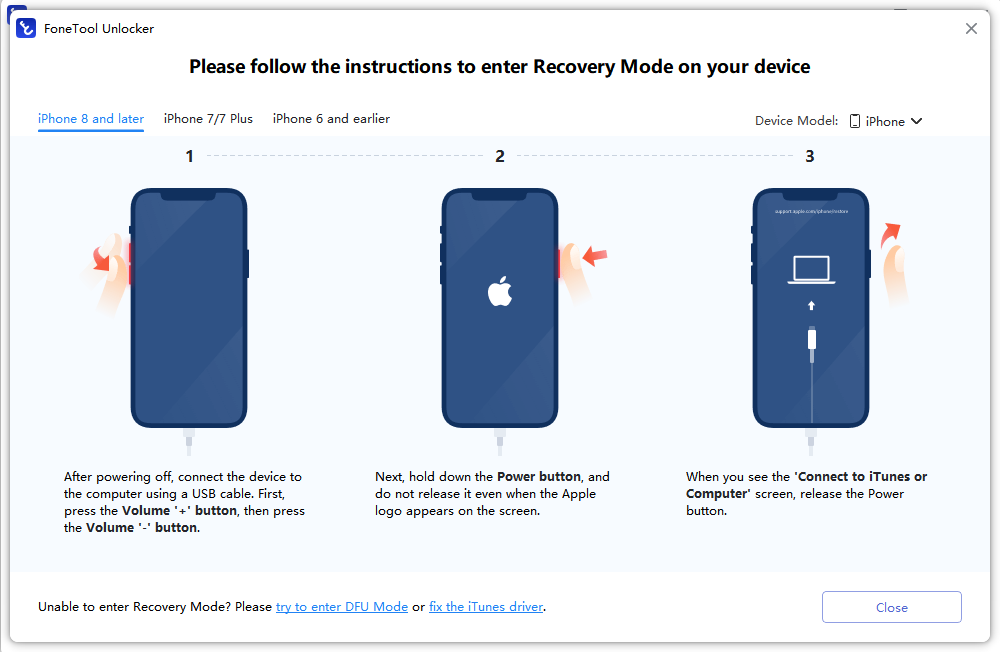
iPhone 8 and later, including iPhone SE (2nd and 3rd generation): side button
iPhone 7 / 7 Plus: volume down button
iPhone 6s and earlier, and iPhone SE (1st generation): Home button - Plug the cable into the computer first. Then hold that button while you connect the cable to your iPhone, and keep holding (even when the Apple logo appears) until you see the recovery mode screen with a computer and a cable.
- On the computer, select your iPhone and choose Restore. The computer downloads iOS and erases the device.
- The iOS download can take more than 15 minutes. If the iPhone leaves the recovery screen meanwhile, let the download finish, turn the iPhone off and repeat step 3.
- Set up your iPhone and restore your backup.
If the buttons don’t respond or you can’t reach the recovery screen, contact Apple Support or visit an Apple Store or Apple Authorised Service Provider.
Method 4: Erase Your iPhone With iCloud (Find My)
- On any browser, go to iCloud.com/find and sign in with your Apple Account.
- Click All Devices and select your iPhone.
- Click Erase iPhone and confirm.
- Once erased, set up the iPhone and restore from your backup.
Need a full walkthrough of the reset itself? See our guide on how to erase all content and settings on iPhone.
Method 5: Use a Third-Party Unlocker (FoneTool Unlocker)
Apple’s methods are free and should be your first choice. Some users, however, prefer a guided desktop tool, for example when recovery mode keeps failing, or when they need extras like removing a forgotten Screen Time passcode or iTunes backup encryption on their own device.
FoneTool Unlocker is a Windows app from AOMEI that walks you through the process step by step. It offers a limited free version, and the full features need a paid plan.
What it can do
- Remove a forgotten screen passcode (4/6-digit, custom code, Face ID or Touch ID)
- Remove a forgotten Screen Time passcode
- Remove iTunes backup encryption
- Remove an Apple Account from the device when you’ve forgotten its password, but only if Find My is already turned off
How to remove the screen passcode with FoneTool Unlocker
STEP 1Back up your iPhone if you can. This process erases all data.
STEP 2Install FoneTool Unlocker on your Windows PC and connect your iPhone with a USB cable.
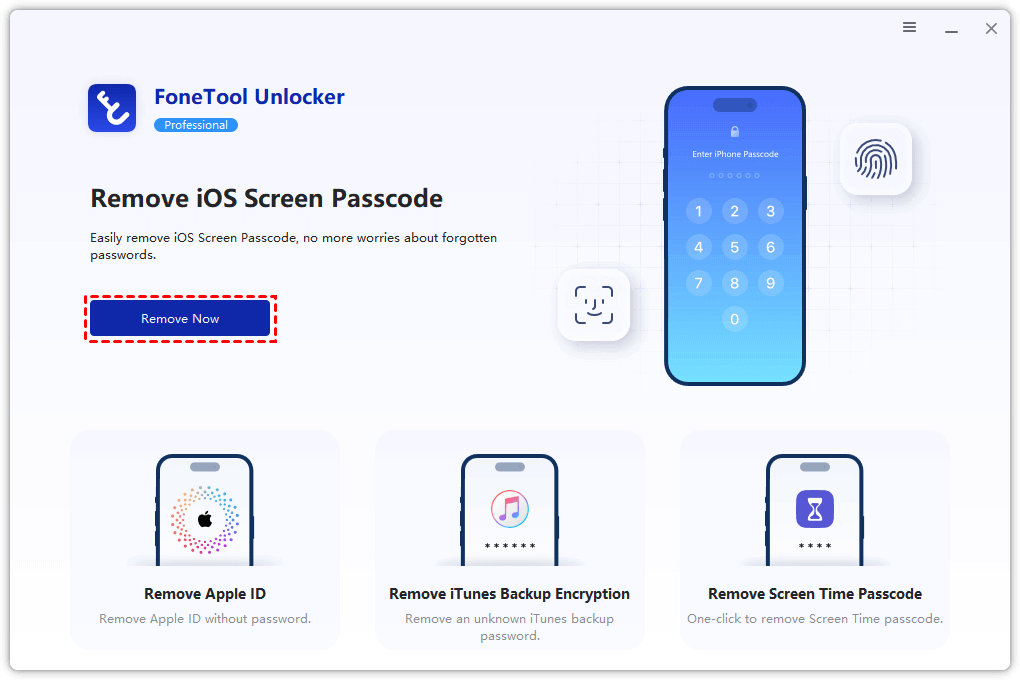
STEP 3Select Remove iOS Screen Passcode and click Remove Now.
STEP 4If the iPhone isn’t recognised, click Tutorial and follow the steps to put it into Recovery Mode.
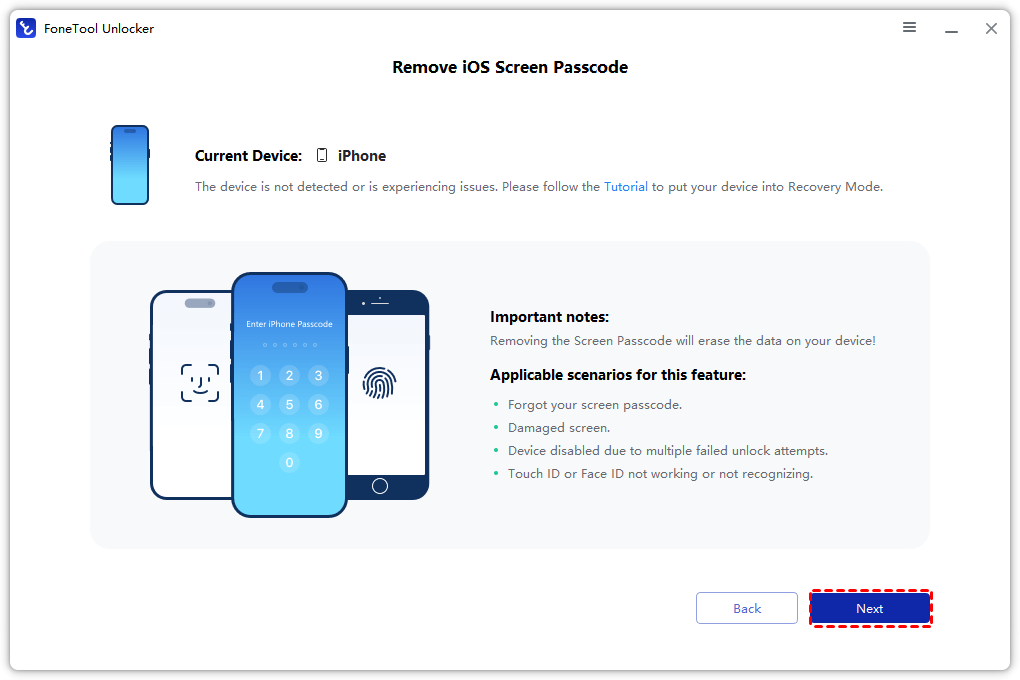
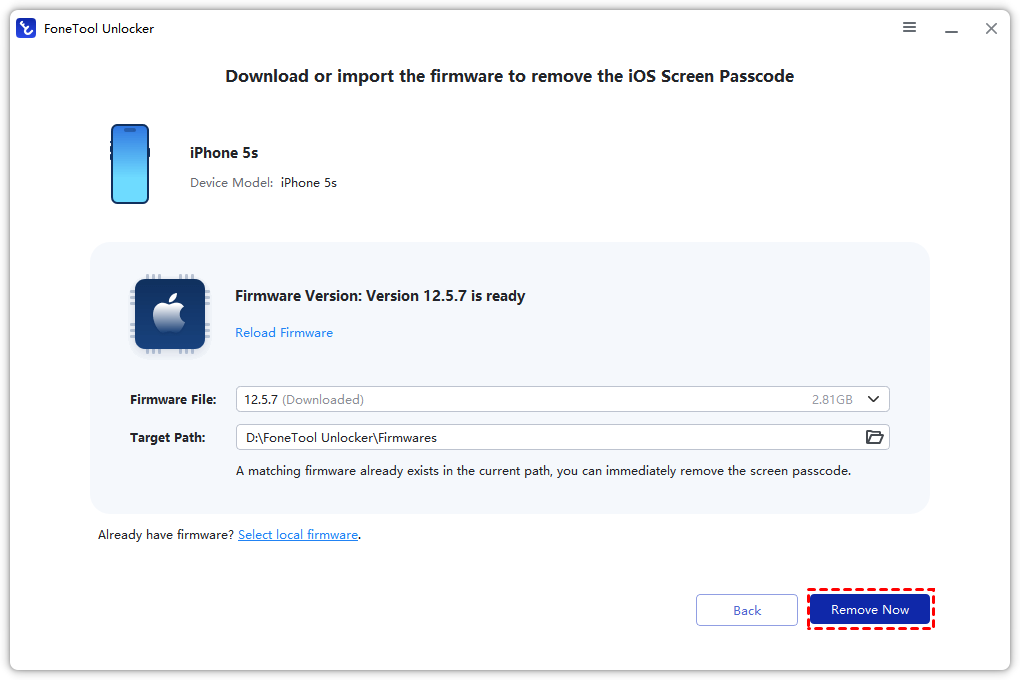
STEP 5Click Next, then Download to get the matching iOS firmware package.
STEP 6Click Remove Now. When it finishes, set up your iPhone and restore your backup.
Pros and cons
Guided interface for non-technical users. Also handles Screen Time and backup-encryption passcodes. Useful when a Finder or Apple Devices restore keeps failing.
Windows app, and full features are paid. Screen-passcode removal still erases your data. Several features need Find My turned off. It cannot remove Activation Lock without the original Apple Account password.
What No Tool Can Do: Activation Lock
Activation Lock is part of Find My and is linked to the Apple Account on the device. After any erase, the iPhone asks for that account’s password before it can be used.
If you bought a second-hand iPhone that is still locked to someone else’s account, ask the seller to remove it from their account. If it is your device and you can’t recover your Apple Account, submit an Activation Lock support request to Apple with your original proof of purchase showing the serial number or IMEI. Apple reviews each request and may ask for more documents. Be careful with any tool or service that promises to “bypass” Activation Lock.
How to Avoid Getting Locked Out Again
- Turn on automatic iCloud Backup (Settings > [your name] > iCloud > iCloud Backup) so a reset doesn’t cost you your data. You can also keep a copy of important files on your computer. Here’s how to access iPhone files on PC.
- Keep Find My turned on so you can use the Lock Screen and iCloud reset options.
- Store your Apple Account password in a password manager.
- Add a recovery contact or recovery key for your Apple Account.
- After changing your passcode, use it a few times in the first 72 hours, while the old passcode still works as a fallback.
FAQs
Can I unlock my iPhone without losing data?
Only if you changed your passcode within the last 72 hours and use the previous-passcode option on iOS 17 or later. Every other method, including third-party tools, erases the device. Your data comes back only if you have a backup. If something is missing after the restore, see how to recover deleted files on iPhone.
Can Apple unlock my iPhone without erasing it?
No. Apple Support can guide you through the reset and review an Activation Lock request if you have proof of purchase, but it cannot remove a forgotten passcode while keeping your data.
Is it legal to use an iPhone unlocker?
Using a tool to regain access to a device you own is generally fine. Using one to get into someone else’s iPhone is not.
How long does recovery mode take?
It depends on your internet speed. Apple says the full restore can take up to about an hour.
Final Words
Locked out of your own iPhone? Start with Apple’s free options: your old passcode if you changed it recently, then the Lock Screen reset, recovery mode, or iCloud. If those don’t work for you, a guided tool like FoneTool Unlocker is a reasonable backup option.
Bottom line: whichever route you pick, a recent backup is what decides whether you get your photos and chats back. Turn on iCloud Backup today.